How To Add Up Rows In Excel

Ever looked at a long list of numbers in Excel and felt a tiny pang of dread? Like, "Ugh, do I have to add all of these up one by one?" Well, guess what? You absolutely don't! Adding up rows in Excel isn't just a handy skill; it's actually pretty fun and surprisingly simple once you know the magic words. Think of it as unlocking a secret superpower that instantly makes you a data-crunching wizard. Whether you're tracking your personal expenses, managing a small business budget, or just trying to figure out your total score in a competitive game of online trivia, knowing how to sum up those rows will save you heaps of time and prevent those dreaded "oops, I missed a number" moments. It’s all about making life easier and getting to the juicy insights faster, without the headache of manual calculation.
The Magic of SUM
At the heart of adding up rows in Excel is a wonderfully straightforward function called SUM. This isn't some complicated code; it's practically a cheat code for calculations! The SUM function does exactly what its name suggests: it adds up a range of numbers for you. Imagine you have a column of sales figures for each day of the week. Instead of painstakingly typing out =B2+B3+B4+B5+B6+B7+B8 (which would be a nightmare if you had a whole month!), you can just tell Excel, "Hey, SUM up everything from B2 to B8." Boom! Instant total. It’s like having a tireless, error-free assistant who’s always ready to do the heavy lifting.
The benefits of mastering this simple technique are huge. Firstly, accuracy. Manual addition is notorious for typos and skipped numbers. SUM eliminates human error, giving you reliable results every single time. Secondly, speed. What takes minutes manually can be done in seconds with a formula. This is especially crucial when dealing with large datasets. Thirdly, flexibility. Once you have your SUM formula in place, if you change any of the numbers in the row, the total automatically updates. No more recalculating from scratch! This makes your spreadsheets dynamic and always up-to-date.
Must Read
Let's Get Sum-thing Done! (The "How-To")
Ready to dive in? It’s easier than you think. Let's say you have numbers in cells C2 through C10, and you want to see their total in cell C11. Here’s your mission, should you choose to accept it:
- Click on the cell where you want your total to appear. In our example, that's C11. This is where the magic will happen!
- Type the equals sign (=). Every formula in Excel starts with this. It’s like a secret handshake that tells Excel, "Prepare for a calculation!"
- Type the word SUM. That’s right, just S-U-M.
- Type an opening parenthesis ((). This tells Excel you're about to give it a list of things to SUM.
- Specify the range of cells you want to add. You can do this in a couple of ways:
- Click and drag your mouse from the first cell (C2) to the last cell (C10). Excel will automatically fill in the range like
C2:C10. This is often the easiest and most visual way! - Manually type the range. In our case, you'd type
C2:C10. The colon (:) is super important here; it tells Excel "everything between these two cells, inclusive."
- Click and drag your mouse from the first cell (C2) to the last cell (C10). Excel will automatically fill in the range like
- Type a closing parenthesis ()). This signals the end of your SUM command.
- Press Enter. And voilà! The total of your numbers will magically appear in cell C11.
So, the full formula in cell C11 would look like this: =SUM(C2:C10). Isn't that neat?

The AutoSum Shortcut: Your New Best Friend
Excel knows that summing things up is a super common task, so it’s given us an even quicker way: the AutoSum button. It's usually represented by a Greek letter sigma (Σ) on the Excel ribbon, typically in the Home tab or the Formulas tab. Here's how to use this little gem:
- Select the cell where you want the total to appear. This is usually just below your column of numbers or to the right of your row of numbers.
- Click the AutoSum button (Σ).
And that’s pretty much it! Excel is usually smart enough to guess the range of numbers you want to sum. It will highlight the range it thinks you mean. If it’s correct, just press Enter. If it’s not quite right, you can always click and drag to adjust the highlighted range before hitting Enter. It’s like a helpful little guide!

Think of AutoSum as your express lane to getting totals. It's the go-to for quick sums when the numbers are neatly lined up.
Beyond the Basics: Summing Specific Rows or Columns
What if you don’t want to sum an entire column or row? No problem! You can sum individual cells too. For instance, if you want to add the values in cells A1, A5, and A8, you can type this formula: =SUM(A1,A5,A8). Notice the commas (,) here? They separate the individual cells or ranges you want to include.
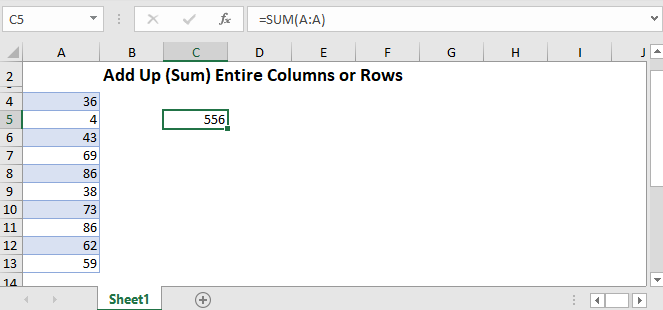
You can also mix and match! If you want to sum a continuous range (like B2 to B5) and then add a single cell (like B10) to that total, your formula would look like this: =SUM(B2:B5,B10).
The power of SUM is its flexibility. You’re not limited to just one block of numbers. You can tell it to add up multiple blocks, individual cells, or a combination of both. This makes it incredibly versatile for all sorts of data analysis.
Conclusion: You've Got the Sum of It!
See? Adding up rows (and columns, and specific cells) in Excel isn't a daunting task at all. It’s a fundamental skill that unlocks efficiency and accuracy. With the mighty SUM function and the handy AutoSum button, you're now equipped to tackle any numerical list with confidence. So go forth, experiment, and enjoy the satisfying feeling of getting your numbers to add up perfectly, every single time! You’ve officially mastered a key Excel superpower!