How To Add Cover Page To Word
Ever found yourself staring at a beautifully crafted document, only to realize it’s missing that certain… oomph? That professional polish? Or perhaps you’re just curious about how those fancy reports and presentations always seem to start with such an impressive introduction? Well, buckle up, because we’re about to embark on a little exploration into the wonderful world of adding a cover page to your Microsoft Word documents. It’s not as intimidating as it sounds, and honestly, it can be quite fun!
So, what exactly is a cover page, and why should you care? Think of it as the handshake of your document. It’s the first impression, the visual introduction that sets the tone and provides essential information at a glance. Its primary purpose is to clearly identify your document, giving readers key details like the title, your name (or the author’s), the date, and sometimes even a company or course name. This makes your work look organized, professional, and easier to navigate right from the get-go. No more hunting for the title buried in the first paragraph!
The benefits are pretty straightforward. A well-designed cover page instantly elevates the perceived quality of your work. For students, it’s an absolute game-changer for essays, research papers, and projects. Imagine handing in an assignment with a polished cover page – it shows you’ve put in that extra effort, and it can make a significant difference in how it’s received. Beyond academia, think about proposals, business reports, resumes, or even personal projects like a family history book. A cover page transforms a collection of pages into a cohesive, presentable package.
Must Read
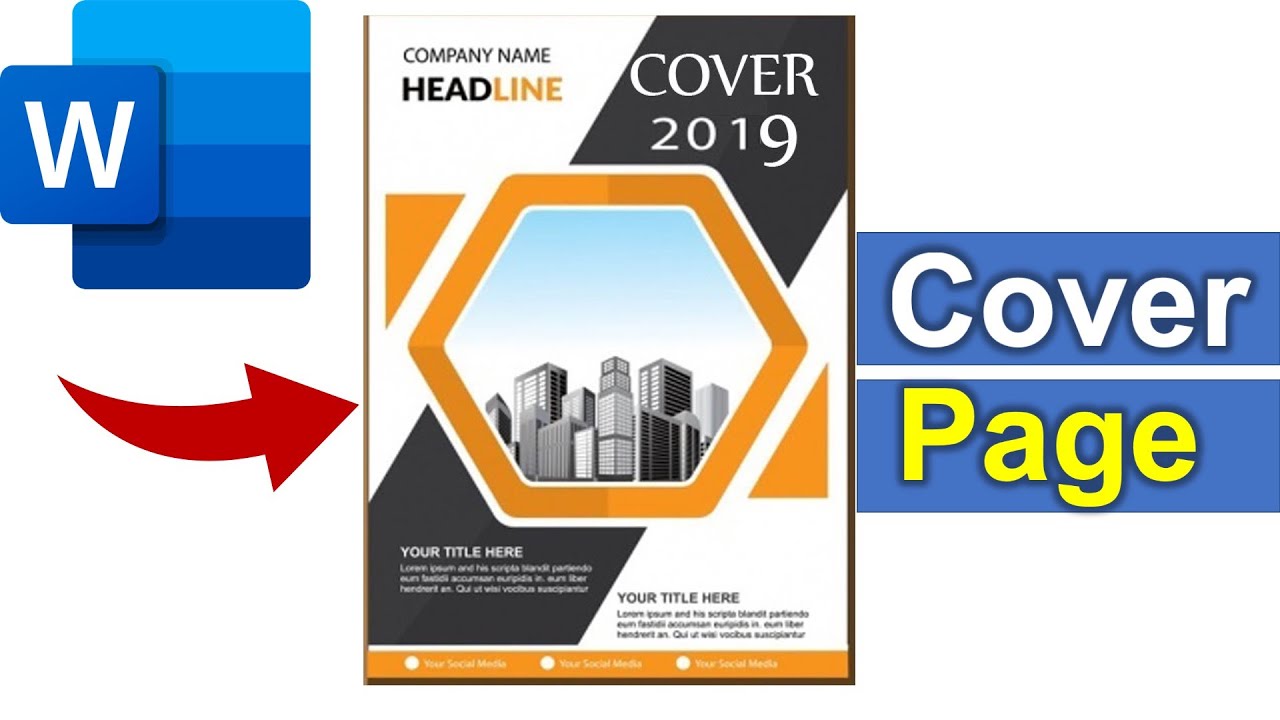
Let’s paint a clearer picture with some everyday examples. For a student, submitting a science project report with a cover page featuring the project title, their name, the class, and a cool relevant image is far more impactful than a plain document. For a job seeker, a professional-looking resume with a clean and informative cover page can be the difference between getting noticed and getting overlooked. Even for something as simple as a detailed recipe collection, a cover page with the collection's name and a date can make it feel like a treasured book rather than just a pile of papers.
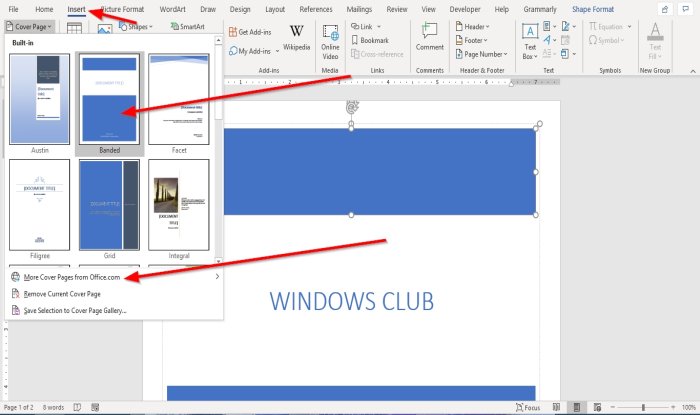
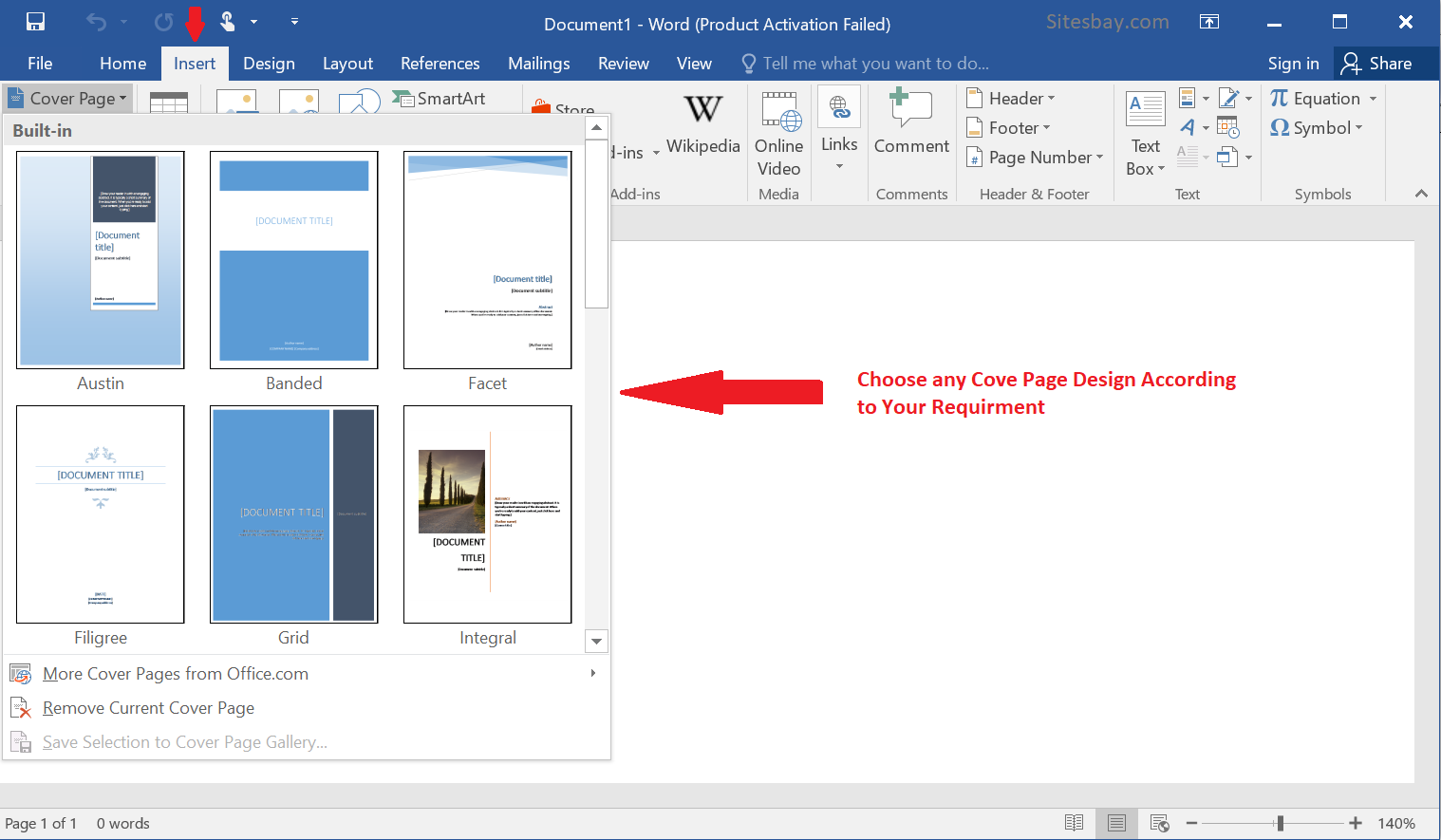
Now, how do you actually do this magical thing in Word? It’s surprisingly simple. Microsoft Word actually provides a bunch of pre-designed templates that you can use. Just head over to the Insert tab, and you'll find a whole section for Cover Pages. Click on it, and a gallery of options will appear. You can browse through them, choose one you like, and then simply click to insert it into your document. The placeholders are ready for you to edit!
Once inserted, you’ll see different text boxes for things like "Title," "Subtitle," "Author," and "Date." Just click on each one and type in your own information. You can often add images or change fonts and colors if you’re feeling a bit more adventurous. Don’t be afraid to experiment! Click around, try different templates, and see what looks best for your specific document. The goal is to make your work stand out and represent you (or your project) in the best possible light. So next time you’re finishing up a Word document, remember that little embellishment that can make a big difference – the cover page!