How To Add Axis Titles On Excel

Ever found yourself staring at a beautiful, colorful chart in Excel, only to be a little… confused? You see the bars or lines zipping up and down, but what exactly are they measuring? This is where the humble, yet mighty, axis title steps in! It’s like giving your chart a little voice, a way to tell you what story it’s trying to tell. And honestly, learning how to add them is surprisingly simple and incredibly satisfying. It's not just about making your charts look professional; it's about making them understandable.
So, what's the big deal with axis titles? Think of them as the labels for the very foundation of your chart. The horizontal line (the x-axis) and the vertical line (the y-axis) are where all your data points live. Without titles, these axes are just lines with numbers. With titles, they become meaningful. For example, the x-axis might be labeled "Month" or "Product Category," while the y-axis could be "Sales Revenue ($)" or "Number of Students." This clarity is absolutely crucial for anyone trying to interpret your data, whether it's your boss, your classmates, or even your future self!
The benefits are pretty straightforward: clear communication and accurate interpretation. When your axes are clearly labeled, there's no room for guesswork. People can instantly grasp what the chart represents, saving them time and preventing misunderstandings. Imagine a teacher presenting student test scores. Without an "Average Score" label on the y-axis, students might not know if the numbers represent raw scores, percentages, or something else entirely.
Must Read
In our daily lives, this skill pops up more than you might think. Planning a budget? Your chart showing "Monthly Expenses" on one axis and "Amount ($)" on the other makes your financial picture instantly clearer. Tracking your fitness goals? A chart of "Days Exercised" against "Calories Burned" is much more impactful with those labels. Even a simple family chore chart benefits from clear titles, letting everyone know who's responsible for what and for how long.
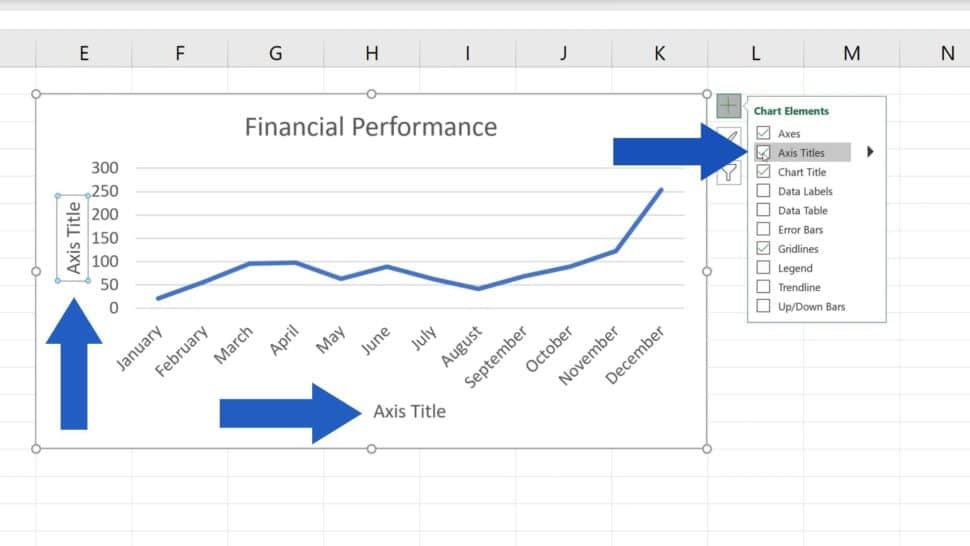
Ready to give it a go? It’s easier than you think! The most common way is to first select your chart. You’ll then see a few little plus signs or a paintbrush icon appear next to it. Click on that, and look for "Axis Titles." Once you check that box, you'll see placeholder titles appear on your chart. Just click on them, and you can type in your own descriptive labels. It’s that simple! You can even go into "Chart Design" or "Format Chart Area" for more advanced options, like changing the font size or color, but for now, just getting those basic labels in place is a huge win.
Don't be afraid to experiment! Create a few sample charts with different types of data – maybe your favorite movies by year, or the number of hours you spent on different hobbies. Try adding different axis titles and see how it changes the way the chart is understood. The more you play around with it, the more natural it will become, and the more confident you'll feel in creating charts that are not only visually appealing but also powerfully informative. Happy charting!

![How to Add Axis Titles in Excel [Quick & Easy Methods 2024]](https://10pcg.com/wp-content/uploads/excel-windows-format-axis-title-2.jpg)