How Do You Mirror Image In Word
Ever stare at a document and think, "You know what this needs? A little bit of… oomph!" Maybe you've got a picture that's just begging to be flipped, or a shape that would look so much cooler on the other side. Well, buckle up, buttercup, because we're about to dive into the magical world of mirroring images in Microsoft Word. And trust me, it's way easier than wrestling a reluctant toddler into a snowsuit!
Let's be honest, most of us use Word for, well, words. But Word is like that friend who secretly knows how to juggle chainsaws – it has hidden talents that can totally jazz up your everyday life. And mirroring an image? That's one of those little tricks that can make your presentations pop, your party invitations sing, and your even your grocery lists feel a tad more artistic. Who knew domesticity could be so glamorous?
So, How Do You Actually Do This Mirrored Magic?
Alright, enough teasing. Let's get down to the nitty-gritty. You've got your image, right? It's sitting pretty in your Word document, minding its own business. Now, you want to give it a good old horizontal flip. Think of it like looking at yourself in a mirror – everything's reversed!
Must Read
First things first, you need to select the image you want to transform. Just give it a good old click. You'll see those little handles appear around it – that's your signal that Word is paying attention.
Now, here's where the real fun begins. Look up at the top of your Word screen. When an image is selected, a new tab pops up called "Picture Format". It's like a secret handshake that only happens when you're ready to get creative with your visuals. Click on that!
Inside the "Picture Format" tab, you're going to look for a group of buttons that usually says "Arrange". This is your command center for all things layout-related. And within "Arrange," you'll find the glorious "Rotate" option. Ah, "Rotate"! Such a simple word for such powerful potential!
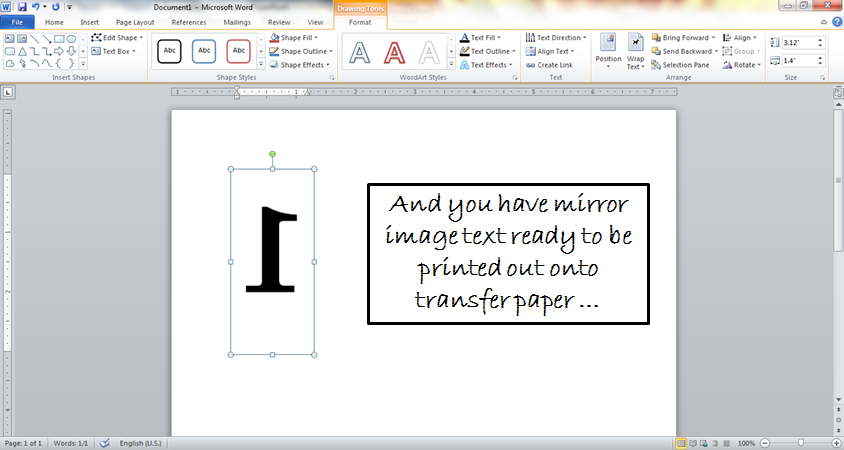
Click on "Rotate," and a drop-down menu will appear. This is where the magic truly happens. You'll see options like "Rotate Right 90°," "Rotate Left 90°," and a bunch of others. But what we're looking for is "Flip Horizontal". Bingo! Give that a click.
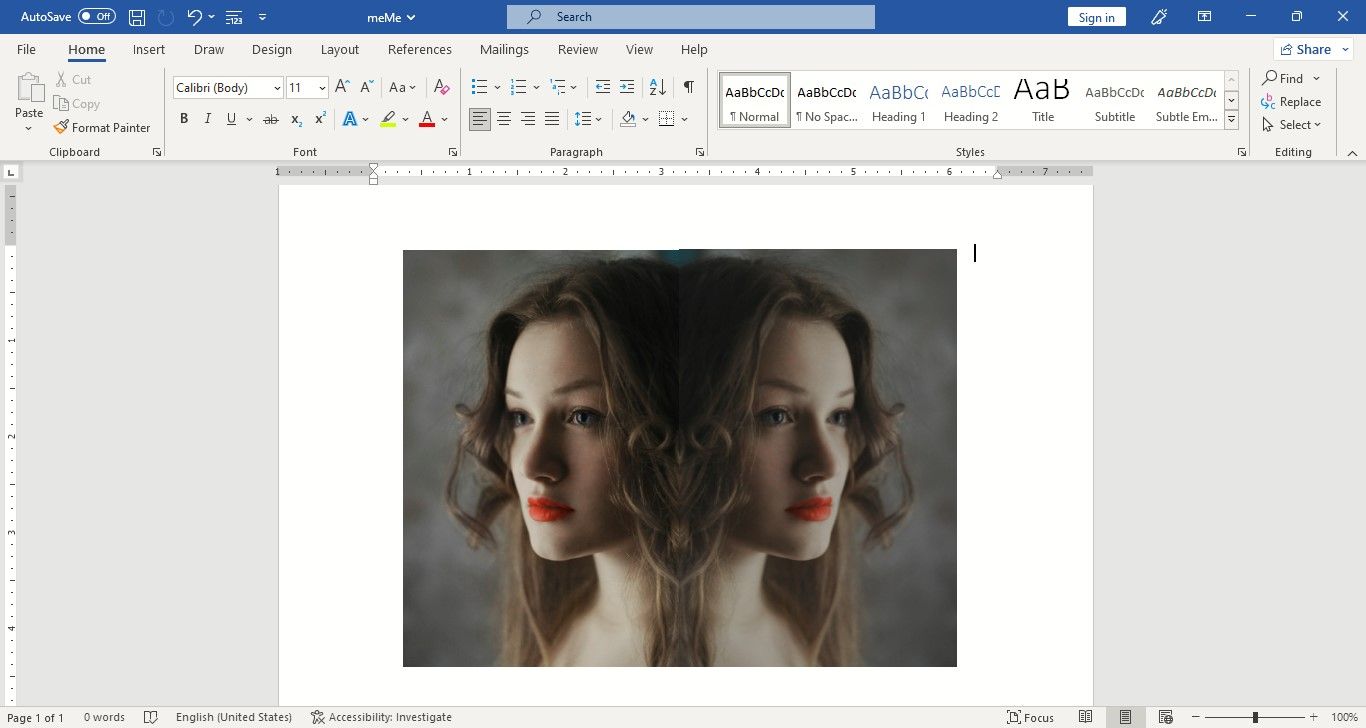
And poof! Just like that, your image will be mirrored. It's like it's taken a little trip through the looking glass. Isn't that neat? You didn't even have to break a sweat. High fives all around!
Why Bother Mirroring? Let's Get Inspired!
Okay, okay, I can hear you thinking, "But why would I ever need to do that?" My dear reader, the possibilities are as vast as your imagination!
:max_bytes(150000):strip_icc()/013-how-to-mirror-an-image-in-word-4690592-5034403b6f834d06805676004998c80a.jpg)
Imagine you're creating a flyer for a bake sale. You have a picture of a delicious-looking cupcake, but it's facing the wrong way to perfectly balance your text. Mirroring! Problem solved. Your cupcake is now looking right at your wonderful words, inviting everyone to indulge.
Or perhaps you're designing a wedding invitation. You have two beautiful images of intertwined rings, but they're facing inwards, creating a slight visual disconnect. A quick horizontal flip on one of them, and suddenly they're facing each other, symbolizing unity and perfect harmony. See? Romance, facilitated by Microsoft Word!
What about those geometric shapes you're playing with for a report cover? Sometimes, just flipping a triangle or a square horizontally can create a dynamic visual effect that draws the eye and makes your design feel more professional and intentional. It’s the little details, folks!
Even for something as mundane as a family newsletter, you might have a candid photo of your kids. If one is looking off to the side, mirroring them can make it look like they're both engaged with whatever you're writing about. It's a subtle trick, but it can make a big difference in how your content is perceived.
Think of it as giving your images a little personality adjustment. Sometimes, an image just needs to face a different direction to really shine. It's about telling a story with your visuals, and mirroring is just one more tool in your storytelling arsenal.
Beyond the Basic Flip: A World of Rotation Awaits!
And while we're on the topic of flipping and turning, don't forget about the other "Rotate" options! You can tilt your images to give them a bit of an angle, making them feel more dynamic. Or you can do a "Flip Vertical", which is like seeing your reflection in a still pond. Pretty cool, right?

The key is to play around! Don't be afraid to click on all the options. Worst-case scenario, you can always hit that "Undo" button (Ctrl+Z, our trusty savior!). Experimenting is how you discover what works and what makes your documents truly unique.
This simple mirroring technique can take your documents from "meh" to "wow!" in seconds. It’s a small change, but it can have a surprisingly big impact on the overall look and feel of your work. It’s about making your words and images work together in the most visually pleasing way possible.
So, the next time you're staring at your Word document, feeling like it's missing a certain je ne sais quoi, remember the power of the mirror. Give it a flip, give it a turn, and watch your creations come to life in a whole new way. You’ve got this!
Go forth and mirror, my friends! Explore the world of visual manipulation within Word. You might just surprise yourself with what you can create. And who knows, this little bit of knowledge might just inspire you to delve deeper into all the amazing things Word can do. The creative possibilities are endless, and it all starts with a simple flip!