How Do I Use Countif In Excel
So, picture this: I'm drowning in spreadsheets. Not the fun, "ooh, look at these shiny sales figures!" kind of drowning, but the "my eyes are starting to glaze over and I'm pretty sure I've just seen the same row of data for the fifth time" kind of drowning. It was a Monday, naturally. I had this massive list of client interactions, and my boss, bless her organised soul, wanted a count of how many times we’d talked to 'Acme Corp'. Just one company. Easy, right? Well, not when you've got hundreds of companies and a mountain of entries.
My initial thought was to manually scroll. Then I thought about highlighting and… yeah, no. My brain was already staging a full-scale rebellion against this task. There had to be a better way. A magical, spreadsheet-whispering way. And then, in a flash of what felt like pure Excel-induced genius (or maybe just a desperate plea to the spreadsheet gods), it hit me: there are built-in functions for this kind of thing! Mind. Blown.
And that, my friends, is how I stumbled, somewhat ungracefully, into the wonderful world of Excel formulas. Specifically, the magical, the marvelous, the ever-so-useful COUNTIF function. It’s the fairy godmother of your data-counting woes, I swear.
Must Read
Let's Talk About Counting, Shall We?
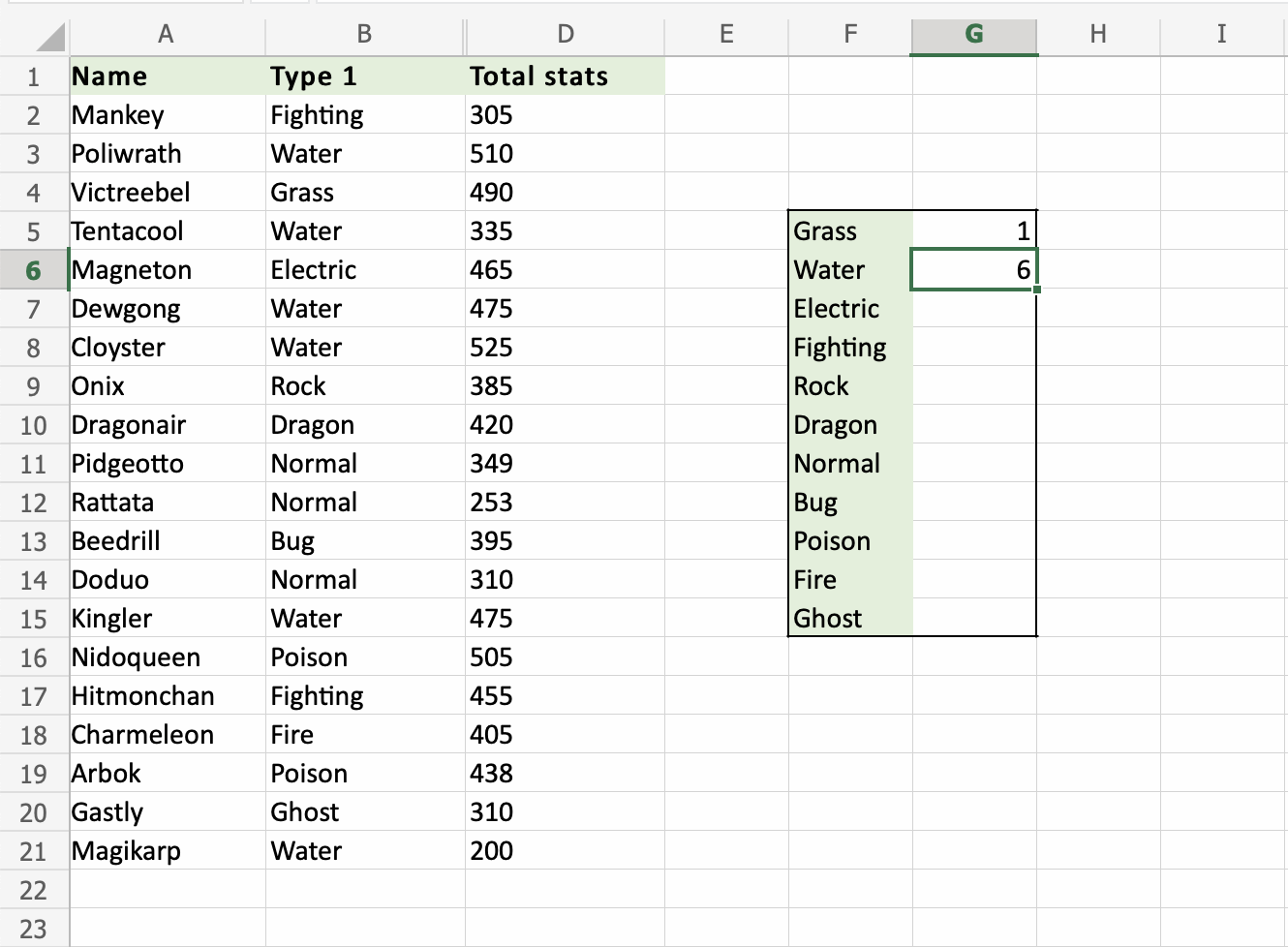
We all count things, right? How many coffees did I have today? (Don't ask.) How many red cars are parked on my street? How many times did I rewatch that episode of that one show last week? It's a fundamental human activity. In Excel, when we’re talking about counting specific things within a dataset, we’re usually talking about counting based on some kind of criterion. That's the fancy word for "what you're looking for."
Imagine you’ve got a list of employees and their departments. You want to know how many people are in the 'Marketing' department. Or maybe you have a list of sales orders and you want to know how many were for more than $1000. This is where COUNTIF shines. It’s like a super-efficient, non-judgmental assistant who’s really, really good at tallying things up for you.
The Anatomy of COUNTIF: It's Not Rocket Science, I Promise!
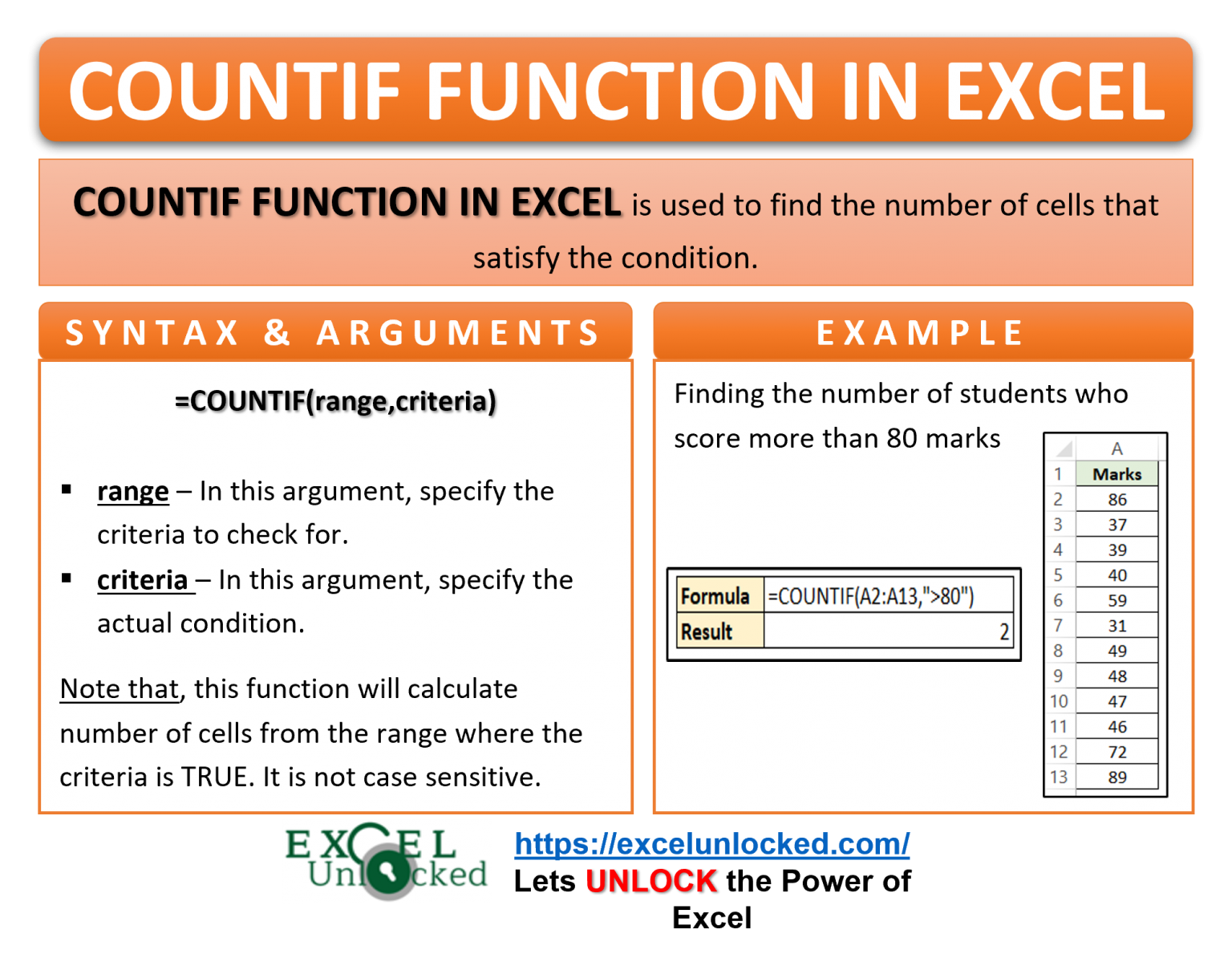
Okay, so how does this magic work? Like most good Excel formulas, COUNTIF has a pretty straightforward structure. You've got two main parts, or arguments, that you need to tell it:
- The Range: This is basically the area of your spreadsheet where you want Excel to look for things. Think of it as the haystack. It could be a single column, a row, or even a whole block of cells.
- The Criteria: This is the specific "thing" you want to count within that range. It’s the needle in your haystack.
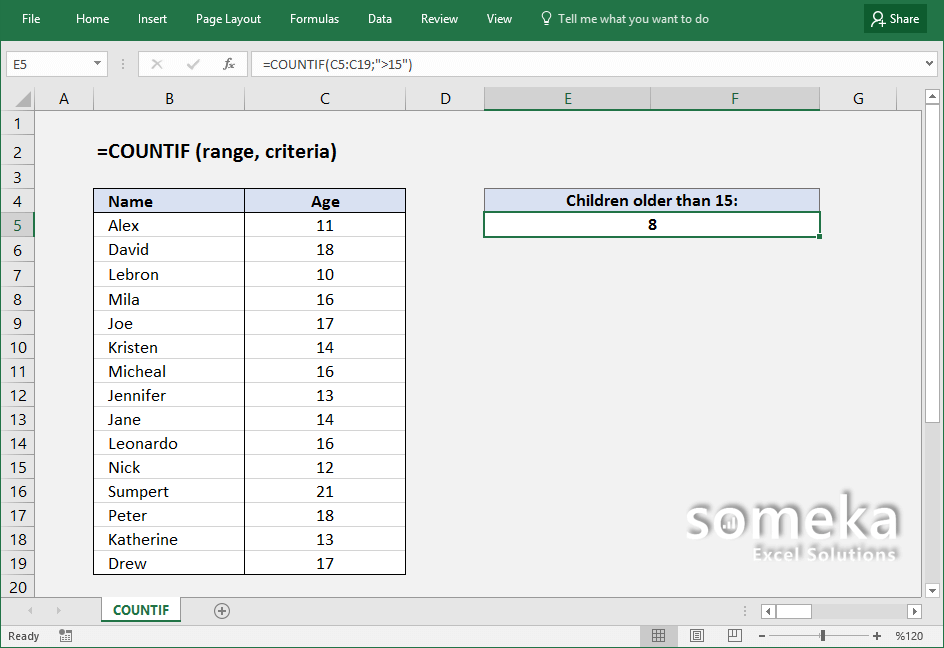
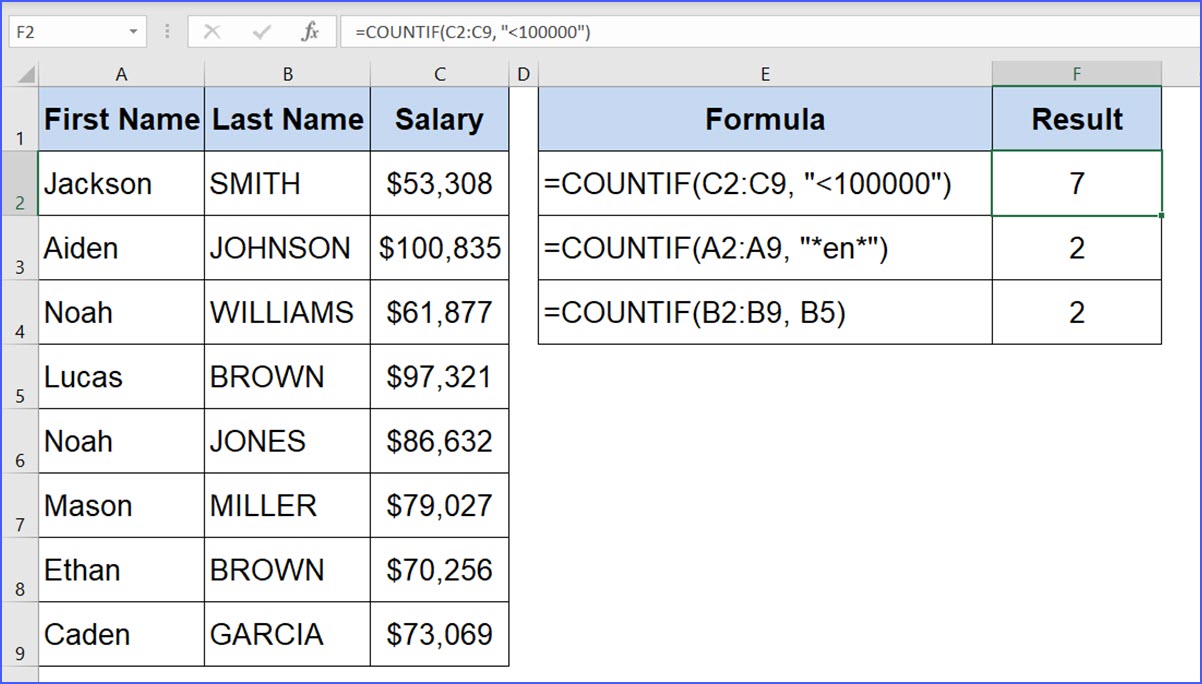
The syntax looks like this: =COUNTIF(range, criteria).
See? Not too scary. Let’s break it down with some examples, because that’s how our brains really start to get it, isn't it?
Putting COUNTIF to Work: Real-World Scenarios (and My Own Dumb Mistakes)
Let's go back to my Acme Corp situation. My data was in Column B, and I wanted to count all the cells that said "Acme Corp". So, in a new cell, I'd type:
=COUNTIF(B:B, "Acme Corp")
And poof! There it was. The number I needed. No more scrolling, no more squinting. It was a small victory, but in the land of data entry, it felt like winning the lottery.

But here's a little tip from my own fumbles: Excel is a stickler for exact matches when you're dealing with text. So, "Acme Corp" is different from "acme corp" (lowercase) or "Acme Corp." (with a period). If your data is a bit messy, you might need to do some cleaning up first, or use wildcards (more on that later, maybe, if you’re feeling brave!).
Counting Numbers: Beyond Just "Equals"
What if you want to count things that meet a condition other than just being equal to something? Like, how many sales figures are greater than $1000? Or how many are less than 50?
This is where you use comparison operators within your criteria. These are your good old friends: >, <, >=, <=, <> (not equal to).
Let's say your sales figures are in Column C. To count sales over $1000, you'd type:
=COUNTIF(C:C, ">1000")
Notice how the criteria is in quotation marks. That’s important for comparison operators when you're working with numbers. It tells Excel, "Hey, this isn't just a number; it's a condition to check."
Similarly, for sales less than $50:
=COUNTIF(C:C, "<50")
And if you wanted to count everything that isn't a specific value, say, you want to count all the rows that don't say "Pending":

=COUNTIF(D:D, "<>Pending")
This is super handy when you're looking for exceptions or things that need attention. It’s like having a little data detective on your side.
Wildcards: When You Don't Know the Exact Thing
Sometimes, your data isn't perfectly uniform. You might have "Apple," "Apple Inc.," and "Apple Pie." If you just wanted to count anything that starts with "Apple," how would you do it? Enter the wildcards!
There are two main wildcards in Excel:
- Asterisk (): This represents *any sequence of characters (or no characters at all).
- Question Mark (?): This represents any single character.
Let's say you want to count all entries in Column E that start with "App". You'd use the asterisk:
=COUNTIF(E:E, "App")
This will count "Apple," "Apple Inc.," "Appetizers," and anything else that begins with "App". Pretty neat, huh?
What if you wanted to count entries that have "Corp" as the *third letter? This is where it gets a bit more niche, and frankly, I don't use it that often, but it's good to know! You'd use question marks to represent the characters before "Corp":
=COUNTIF(B:B, "??Corp")
This would count things like "ACorp" or "XBCorp," but not "TheCorp" (which has more than two characters before "Corp").
A word of caution: If you actually want to search for an asterisk or a question mark as a character in your data, you need to put a tilde (~) before it. So, to count cells containing "50%":
=COUNTIF(F:F, "~50%")
It’s like Excel’s way of saying, "Are you sure you mean the literal character?"
COUNTIFS: Because Sometimes One Criterion Isn't Enough
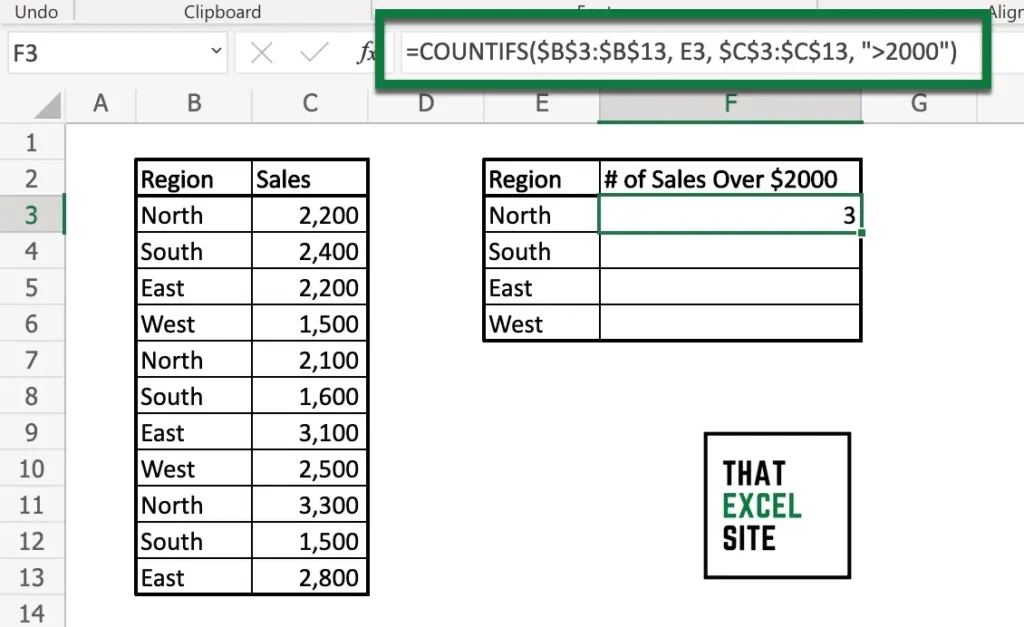
Now, what if your boss asks for something a little more complex? Like, "How many sales did 'Acme Corp' make in the 'North' region for more than $1000?" Aha! One criterion just won't cut it anymore. This is where COUNTIFS (with an 'S' at the end, crucial!) comes into play.
COUNTIFS allows you to specify multiple criteria across one or more ranges. It’s like having multiple detectives working together, each with their own clue.
The syntax for COUNTIFS is a bit different:
=COUNTIFS(criteria_range1, criteria1, [criteria_range2, criteria2], ...)
Notice that the criteria ranges and their corresponding criteria come in pairs. You can have many of these pairs.
Let's use that Acme Corp example. Assume:
- Column B: Company Name
- Column D: Region
- Column C: Sales Amount
To count sales from "Acme Corp" in the "North" region for over $1000, you'd write:
=COUNTIFS(B:B, "Acme Corp", D:D, "North", C:C, ">1000")
This is where COUNTIFS truly becomes a powerhouse. You can chain together as many conditions as you need, and Excel will only count a row if all the conditions are met. It's like a super-powered data filter.
Remember that quotation mark rule for comparison operators? It applies here too! So, for the ">1000" part, the quotes are essential.
Common Pitfalls and How to Avoid Them (Mostly)
Even with these handy functions, I’ve still managed to trip myself up. Here are a few things that have made me stare blankly at my screen:
- Typos: I know, I know, "obvious," right? But a single misplaced letter in your criteria can render your formula useless. Double-check, triple-check!
- Case Sensitivity (or lack thereof): As I mentioned, COUNTIF (and COUNTIFS) are generally not case-sensitive when comparing text. "Acme Corp" and "acme corp" will be treated the same. This is usually a good thing, but it's something to be aware of. If you need case sensitivity, you're heading into territory that requires more advanced formulas (like combining SUMPRODUCT with EXACT – let’s not go there today, shall we?).
- Extraneous Spaces: A space before or after your text in the criteria, or in your data, can mess things up. Use the TRIM function to clean up spaces in your data if you suspect this is an issue. For example,
=COUNTIF(TRIM(B:B), "Acme Corp")might help, although applying TRIM directly to a whole column in a COUNTIF can be tricky and inefficient. Usually, cleaning the source data is best. - Using the Wrong Function: Did you want to count text or numbers? COUNTIF works for both. But there are other counting functions like COUNTA (counts non-empty cells), COUNT (counts only numbers), and COUNTBLANK (counts empty cells). Make sure you’re picking the right tool for the job!
The Takeaway: Your Data Just Got Smarter
Honestly, learning to use COUNTIF and COUNTIFS was a game-changer for me. It took tasks that used to take ages (and induce headaches) and turned them into seconds. It’s the kind of function that, once you start using it, you’ll wonder how you ever lived without it.
So, next time you find yourself staring down a mountain of data, wondering how many times a particular item appears, or how many entries meet a certain condition, remember COUNTIF. And if you need more than one condition, remember its super-powered sibling, COUNTIFS.
Go forth and count! Your spreadsheets (and your sanity) will thank you.