
How Do I Print From A Laptop

Hey there, fellow tech adventurer! So, you've got this awesome laptop, brimming with brilliant ideas, maybe some hilarious cat memes, or perhaps that super important document your boss (or your mom!) is expecting. And now, you're thinking, "How do I actually, you know, print this thing?" Don't sweat it! Printing from your laptop might sound a tad daunting, like assembling IKEA furniture without the instructions, but trust me, it's way easier than you think. Let's dive in and conquer this printing puzzle together, shall we?
First things first, let's talk about the star of the show: your printer. Is it a fancy wireless marvel that floats in on a cloud of ink fumes, or is it a trusty wired companion that's been with you through thick and thin? Knowing your printer type is the first step. Most modern printers these days are wireless, which is a total game-changer. No more wrestling with USB cables that have a mind of their own! But hey, if yours is a wired wonder, we'll cover that too.
Okay, let's assume you have a wireless printer. The universe is basically aligning in your favor here. The magic word is Wi-Fi. Your laptop and your printer need to be on the same Wi-Fi network. Think of it like a secret handshake between your devices. If they're on different networks, they're basically speaking different languages, and your document will be lost in translation (and won't appear on paper, sadly).
Must Read
So, how do you get them chummy? Usually, when you first set up your wireless printer, it guides you through this process. It might involve downloading some software from the printer manufacturer's website, or it might have a little touchscreen on the printer itself. If you've already done this initial setup, you're probably golden. Just make sure both devices are powered on and connected to your home (or office!) Wi-Fi. Easy peasy, lemon squeezy!
Now, let's say you're ready to print that masterpiece. Open up whatever document you want to print. Whether it's a Word doc, a PDF, a photo, or even a web page (imagine printing that recipe you're definitely going to try someday!), the process is pretty much the same.
Look for the File menu. It's usually in the top-left corner of your application window. Click on it, and a drop-down menu will appear. Amongst all those options like "New," "Open," and "Save," you'll see the glorious word: Print. Sometimes it's a little icon that looks like a printer, but the word "Print" is your best friend here.
Click on "Print," and a new window, the Print Dialog Box, will pop up. This is where the real magic happens! You'll see a list of available printers. If your wireless printer is connected and on the same network, it should appear in this list. Select it from the dropdown menu. If you have multiple printers (lucky you!), make sure you pick the right one. You don't want to accidentally send your grocery list to your boss's office printer, unless you're feeling particularly bold!

Inside the Print Dialog Box, you'll find a bunch of other handy options. You can choose how many copies you want. Need 10 copies of that funny meme? Go for it! Want just one copy of your essay? That's fine too.
You can also select which pages you want to print. Maybe you only need page 3 of that lengthy report, or perhaps you want to print a specific range of pages. Most applications give you options like "All," "Current Page," or "Pages from [number] to [number]." This is a super useful feature to save on ink and paper, and let's be honest, who has endless supplies of both?
Then there's the matter of printer settings. This can vary a bit depending on your printer and the application you're using. You might see options for paper size (Letter, A4, etc.), orientation (Portrait or Landscape – think vertical or horizontal), and color (or black and white). If you're printing photos, you might want to select a higher quality setting. If it's just a draft, you can often select "Fast" or "Draft" mode to save ink. It's like choosing your printer's outfit for the occasion!
For those of you with wired printers, the process is very similar. The main difference is that you'll need to connect your laptop to your printer using a USB cable. Make sure the cable is firmly plugged into both your laptop and your printer. If it's a brand new printer, you'll likely need to install its drivers (the special software that tells your computer how to talk to the printer) before you can print. Your printer's manual or the manufacturer's website will be your best friend for this step.
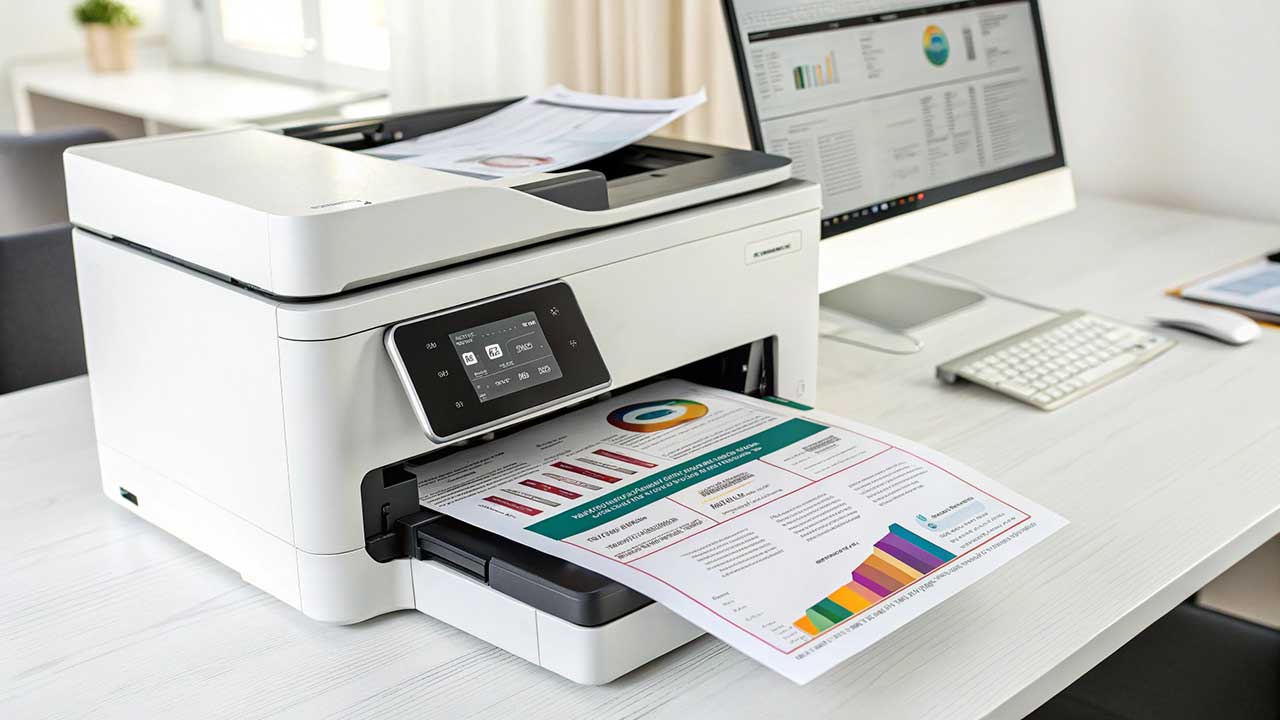
Once the cable is connected and the drivers are installed (phew!), the rest of the printing process is just like we described for wireless printers. Open your document, go to File > Print, select your printer from the list, tweak your settings, and hit that magical Print button. It’s like plugging in a lamp – simple and effective!
What if your printer isn't showing up in the list? Don't panic! First, double-check that it's powered on. Seriously, it sounds silly, but sometimes the simplest things get overlooked. Then, confirm that your laptop is connected to the correct Wi-Fi network. A quick glance at your Wi-Fi icon in the corner of your screen can save you a lot of hassle.
If you're using a wireless printer and it's still playing hard to get, try restarting your printer and your laptop. It's the tech equivalent of a deep breath and a fresh start. Sometimes, that's all it takes to get them back on speaking terms.
For wired printers, ensure the USB cable is snug. Try a different USB port on your laptop, just in case one of them is having an off day. Also, check if you've installed the necessary printer drivers. These are crucial for your computer to recognize and communicate with the printer.
Troubleshooting Tips: When Your Printer Decides to Play Hide-and-Seek
Sometimes, printing can feel like a mystical art. If your printer is acting up, don't despair. Here are a few more tricks up your sleeve:

The "Is it plugged in?" Check
Yes, I know. But you'd be surprised. Is the power cord firmly in the wall and the printer? Is the USB cable fully inserted? A loose connection is the number one culprit for many printing woes. Give everything a good, firm push.
The "Wrong Network" Tango
For wireless printers, this is a biggie. Your laptop and printer must be on the same Wi-Fi network. If you have a 2.4GHz and a 5GHz network with similar names, make sure you're connecting both devices to the same one. It's like having two doors to the same house – you want to go through the same door!
The "Driver Dilemma"
Drivers are like the translator between your computer and your printer. If they're missing, outdated, or corrupted, your printer won't understand your commands. Head to the printer manufacturer's website, find your printer model, and download the latest drivers. It’s usually a pretty straightforward installation process.
The "Print Spooler Glitch"
Think of the print spooler as the printer's to-do list manager. Sometimes, this manager gets a bit overwhelmed or confused. You can usually find and restart this service through your computer's "Services" or "Print Management" settings. A quick restart can often clear up printing queues that are stuck.

The "Ink/Toner Level SOS"
Is your printer stubbornly refusing to print? Check your ink or toner levels! Most printers will display a warning when they're running low. Running out of ink is like a chef running out of a key ingredient – the dish just won't get made!
The "Paper Jam Panic"
Oh, the dreaded paper jam! This is a classic. Carefully open all the accessible doors and trays of your printer and gently pull out the jammed paper, following the indicated direction. Gently is the keyword here, folks. You don't want to rip the paper and leave little bits behind.
Okay, so you've navigated the maze, you've selected your printer, you've tweaked the settings, and you've nervously (or confidently!) clicked that Print button. And then... whirr, click, whirr... your document starts to emerge! Ah, the sweet sound of success! There’s a certain satisfaction in seeing your digital creation manifest in physical form, isn't there? It’s like a small victory, a tangible piece of your digital world brought to life.
Remember, printing is just another tool in your digital toolbox. With a little practice, you'll be printing like a pro in no time. Don't be afraid to experiment with the settings – you might discover some hidden gems that make your prints even better. And if you ever get stuck, there's a whole world of online help and friendly forums ready to assist. You've got this!
So go forth and print! Print your photos, print your notes, print that funny joke you want to share. May your ink be plentiful, your paper jams be minimal, and your printed pages always bring a smile to your face. Happy printing!

