Connecting Sony Wh 1000xm4 To Pc

So, you've got these amazing Sony WH-1000XM4 headphones. You know, the ones that feel like a cloud for your ears and make the world outside just… poof… disappear? Yeah, those. You probably use them for your commute, your gym sessions, or just to pretend you're in your own personal movie scene while doing chores. But have you ever thought, "Hey, could these magnificent sound cocoons work with my trusty old PC?" The answer, my friend, is a resounding YES! And it’s easier than you think, so let’s dive in and make your desktop audio experience as blissful as your phone's.
Think of it like this: your phone and your XM4s are already best buds, right? They’re always hanging out, sharing all the sweet tunes and podcast wisdom. Now, your PC is kind of like your… let's say, your home base. It’s where you do the serious work, the epic gaming marathons, or where you finally get around to watching that documentary everyone's been raving about. But sometimes, your PC’s built-in speakers can sound a bit like a tin can being kicked down a hallway. Not exactly the immersive experience you signed up for.
Connecting your XM4s to your PC is like upgrading your home base’s sound system from a walkie-talkie to a concert hall. Suddenly, those important video calls will sound crystal clear, your favorite games will have explosions that actually rumble your soul (in a good way!), and that ambient lo-fi playlist you listen to while working will feel like it's being performed live in your living room. It’s all about elevating your everyday digital life, one glorious audio wave at a time.
Must Read
The Magic of Bluetooth: Your Wireless Passport
The primary way to get your XM4s chatting with your PC is through the marvel of Bluetooth. Most modern PCs, especially laptops, have Bluetooth built right in. If you’re rocking a desktop that seems a little… Bluetooth-less, don’t fret! You can easily snag a tiny USB Bluetooth adapter for a few bucks, and suddenly your old-school PC is as hip as a new smartphone. It’s like giving your PC a digital facelift!
So, how does this magical connection happen? It’s a two-step dance, really. First, you need to make sure your XM4s are in pairing mode, and second, you need to tell your PC to look for them and connect. Easy peasy, lemon squeezy. We’ll walk through it, step-by-step, so even if your tech-savviness extends to knowing how to turn the computer on, you’ll be rocking it in no time.
Step 1: Get Your XM4s Ready to Mingle
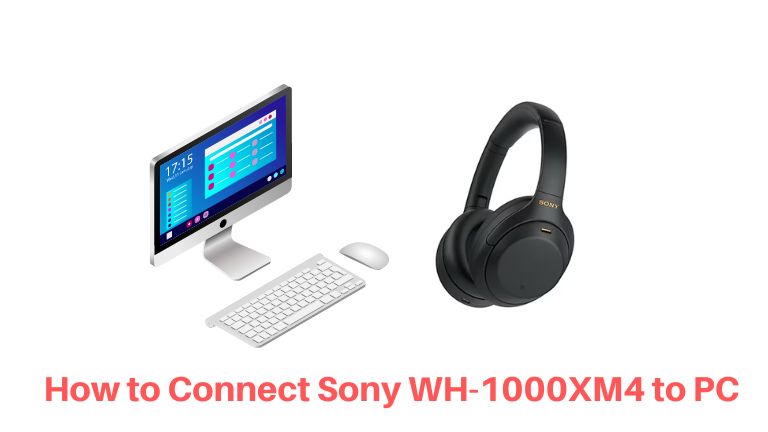
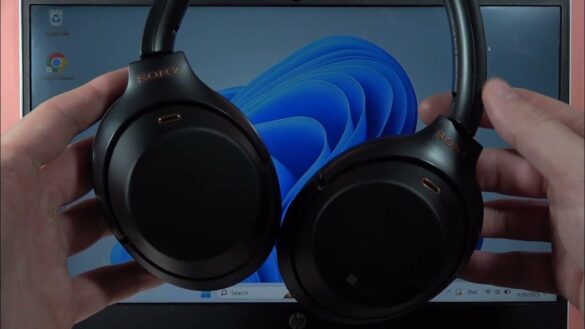
This is where we get your headphones in the mood to be discovered. You’ll notice a little power button on your XM4s. Usually, you press and hold it to turn them on. Now, to get them into pairing mode, you need to press and hold that same button for a bit longer, until you hear a little chime or a voice prompt saying something like, "Bluetooth pairing." You might also see a blue light blinking on the headphones. This blinking light is like the headphones waving a tiny flag, saying, "I'm available for connections!"
Think of it like walking into a party and shouting, "Is anyone looking for a fantastic listening experience?" You’re making yourself known, you’re putting yourself out there. It’s an exciting moment! If you’ve ever paired your headphones with your phone, this process will feel very familiar. It’s the same principle, just a different dance partner.
Step 2: Your PC Joins the Dance
Now, let’s switch over to your PC. The exact steps might vary a little depending on whether you’re using Windows or macOS, but the general idea is the same. On Windows, you’ll want to go to your Settings. You can usually find this by clicking the Start button (that little Windows icon) and then selecting the gear icon. Once you’re in Settings, look for Devices, and then click on Bluetooth & other devices.
Here’s where the magic happens. You’ll see a button that says "Add Bluetooth or other device." Click that! A new window will pop up, asking you what kind of device you want to add. You guessed it: you want to add a Bluetooth device. Select that option.

Your PC will then start scanning the airwaves for any nearby Bluetooth devices that are in pairing mode. This is like your PC putting on its detective hat, searching for clues. Keep your XM4s close by, and if you’ve done Step 1 correctly, you should soon see your "WH-1000XM4" (or something very similar) pop up in the list of found devices. Ta-da! It’s like spotting your friend across a crowded room.
Once you see them, just click on the name of your headphones. Your PC will then attempt to connect. You might see a progress bar, and if all goes well, you'll get a confirmation message saying your device is connected. Sometimes, especially with newer devices, it might ask you to confirm a pairing code, but for the XM4s, it’s usually pretty straightforward. And just like that, your XM4s are now wirelessly linked to your PC!
If you’re on a Mac, it’s very similar. Go to the Apple menu, then System Preferences, and then click on Bluetooth. Make sure Bluetooth is turned on, and your Mac will start searching. Your WH-1000XM4s should appear in the list, and you just click "Connect." Simple as that!
Why Bother? The Glorious Benefits of PC Audio Nirvana
Okay, so you’ve connected them. Congratulations! But why is this a big deal? Let’s talk about the why. Imagine you’re in the middle of an important online meeting. Your boss is talking, and the audio is all fuzzy and crackly through your PC speakers. You’re straining to hear, trying to catch every word, and you miss a crucial instruction. Awkward, right? With your XM4s, that meeting will sound like you’re in the same room as your boss, with crystal-clear audio and maybe even the subtle hum of the office air conditioning in the background (if you choose to let ambient sound in, of course).
Or, consider gaming. You’re deep in a fantasy world, and suddenly a dragon roars. Through your PC speakers, it might sound like a distant grumble. Through your XM4s, that roar will be visceral, making you jump in your seat (in a fun way!) and enhancing your immersion tenfold. You’ll hear the subtle crunch of leaves under your character’s feet, the whisper of the wind, the clang of swords – all the little audio details that make a game truly come alive.
And let’s not forget about productivity. If you’re a content creator, an editor, or just someone who likes to listen to music while they work, the difference is night and day. Your music will sound richer, your podcasts will be more engaging, and those YouTube tutorials will be easier to follow. It’s like upgrading from a black and white TV to a 4K HDR experience for your ears.
A Little Troubleshooting Wisdom
Now, what if things don’t go quite as smoothly? Don’t panic! Technology can be a bit quirky sometimes. If your PC isn’t finding your XM4s, here are a few quick things to check:
- Is Bluetooth actually on your PC? If you don’t see a Bluetooth option in your PC’s settings, you might need that USB adapter we mentioned.
- Are the headphones in pairing mode? Double-check that you held the power button long enough to get that "Bluetooth pairing" voice prompt or the blinking blue light. Sometimes, it needs a bit more patience.
- Are the headphones connected to anything else? Your XM4s can be connected to two devices at once (a really neat feature!). If they’re already connected to your phone, try disconnecting them from your phone first, then put them back in pairing mode. It’s like asking someone to end one conversation before starting another.
- Restart everything! This is the age-old IT solution for a reason. Turn off your headphones, restart your PC, and then try the pairing process again. It’s amazing how often this fixes things.
Once connected, you might also want to check your PC's audio output settings to ensure your XM4s are selected as the playback device. This is usually found in the same "Sound" or "Audio" settings within your PC's control panel. It's like making sure the right instrument is plugged into the amplifier.
So there you have it! Connecting your Sony WH-1000XM4 headphones to your PC is a simple step that unlocks a whole new world of audio quality and immersion for your everyday computer tasks. It’s about making your digital life a little more enjoyable, a little more productive, and a lot more fun. Now go forth and experience your PC audio in glorious sound!